The main goal of account clearing is the completion or closing of open items. They can be closed when they have zero balance in the same account.
When SAP clears open items, this is what happens:
- The items are marked as cleared without changing the original documents, and assigned a clearing date (usually the current) and a clearing document.
- The clearing document is posted and its purpose is linking all cleared items together.
In customer/vendor clearing, the clearing document lines are considered technical, without G/L impact and they are suppressed from the standard FB03 transaction when the G/L view is displayed.
In G/L clearing, the clearing document post actual G/L lines, which are always displayed in FB03. For example: GR/IR, and bank clearing.
1. Manual clearing #
With a manual clearing you decide which open items are cleared. There’s one transaction for G/L accounts (F-03), for customer (F-32) and for vendor (F-44) accounts.
In this transactions you choose open items to be cleared until the difference is zero, If not, you can handle differences having 3 options (similar to the payment differences management):
- Small differences can be posted to a cash discount or write-off account.
- Partial payment: The original open item keeps open.
- Residual item: The original open item is cleared, and a new one is created with the difference.
example video
You could use manual clearing for:
- Bank subaccounts and clearing accounts.
- Refunds from a vendor.
- Clear customer invoice with credit memos. (F-32)
- One payment for multiple invoices.
- Items whose amounts don’t match exactly.
2. Post with clearing (manual) #
This funcionality means that you post a document and at the same time clear existing open items.
This is done in the FB05 transaction, or “Post with Clearing” app, which allows you to post a FI document while clearing open items for G/L, customer or vendor accounts.
This is commonly used for:
- Incoming or outgoing payments.
- Bank statement postings.
- Transfers between accounts.
There are other similar transactions based in the FB05:
- F-28 for customer incoming payment, or “Post incoming payment” app in Fiori.
- F-53 for vendor outgoing payment, or “Post Outgoing Payments” app in Fiori.
- F-04 for G/L post with clearing, or “Post General Journal Entries” app in Fiori.
3. Automatic clearing #
With the automatic clearing transaction (F.13) SAP tries to group items with the same value in these fields:
- Company code.
- Account type (D, K, S) and number.
- Reconciliation account number.
- Currency.
- Special G/L indicator.
- Up to 5 additional rules, where you decide which fields have to match their value to be cleared together in the same group:
This is set at this customizing point:
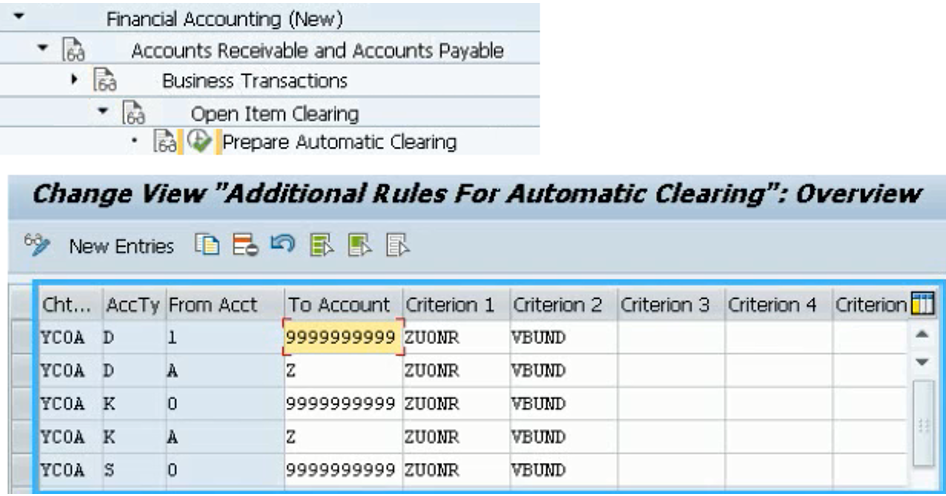
When the automatic clearing is run, If it founds a group of items with zero balance it posts a clearing document to clear those items.
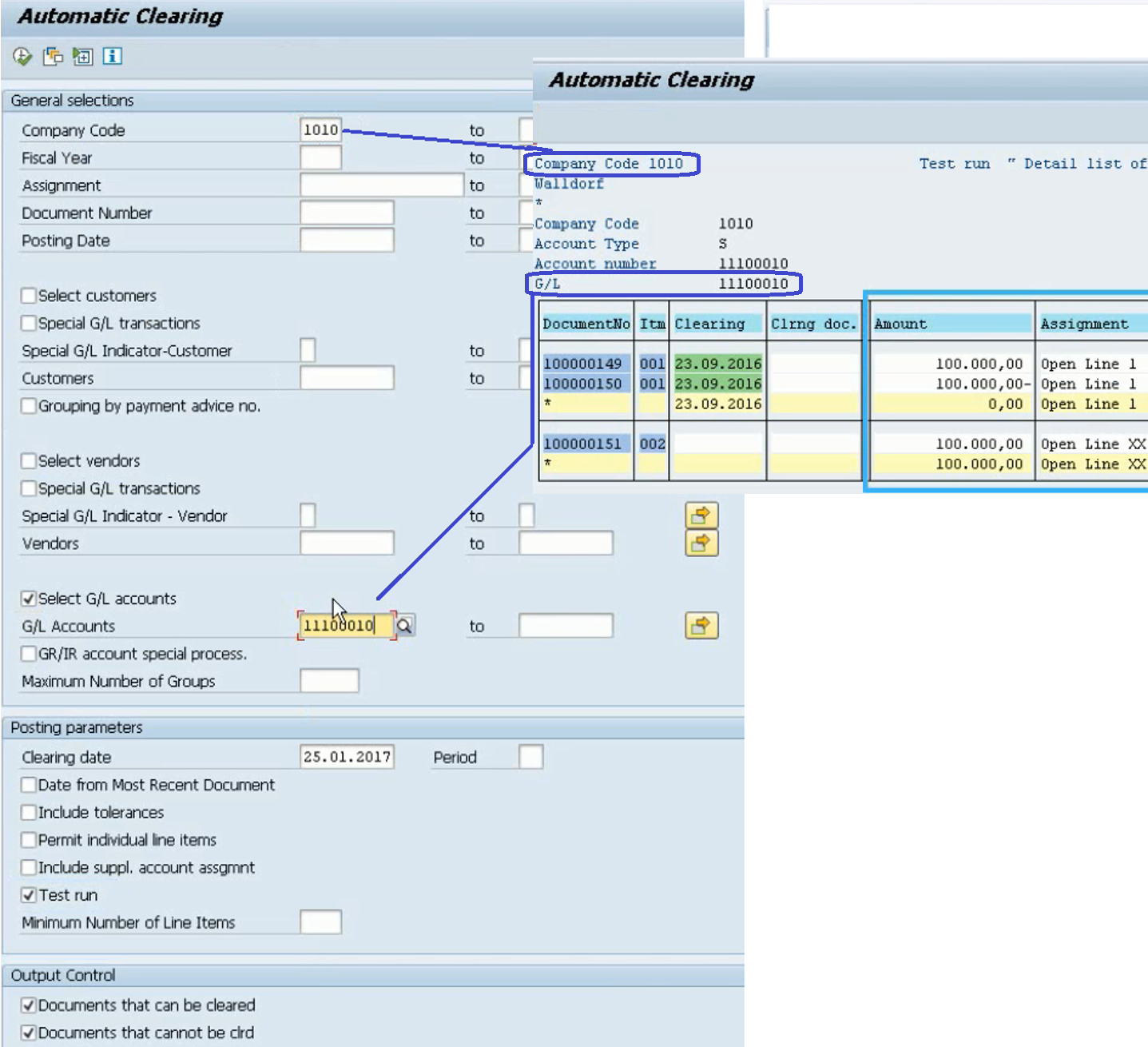 The assignment field (ZUONR) of the open items is normally used as a criterion for clearing, and it has a value that can be set automatically according to the “Sort Key” of the G/L account or the business partner (for vendor/client account).
The automatic clearing is normally used to clear these items:
- Cash discounts.
- Exchange rate differences.
- Bank charges.
- Over/Under payments within tolerance.
- Cross-company code payments.
- GR/IR clearing.
4. In case of cleared by mistake #
After clearing open items by mistake you have to use transaction FBRA to:
- Reset the cleared items. This means items become open again and clearing date and document are deleted from the items.
- Optionally reverse the clearing document. It’s not deleted and remains for audit history.
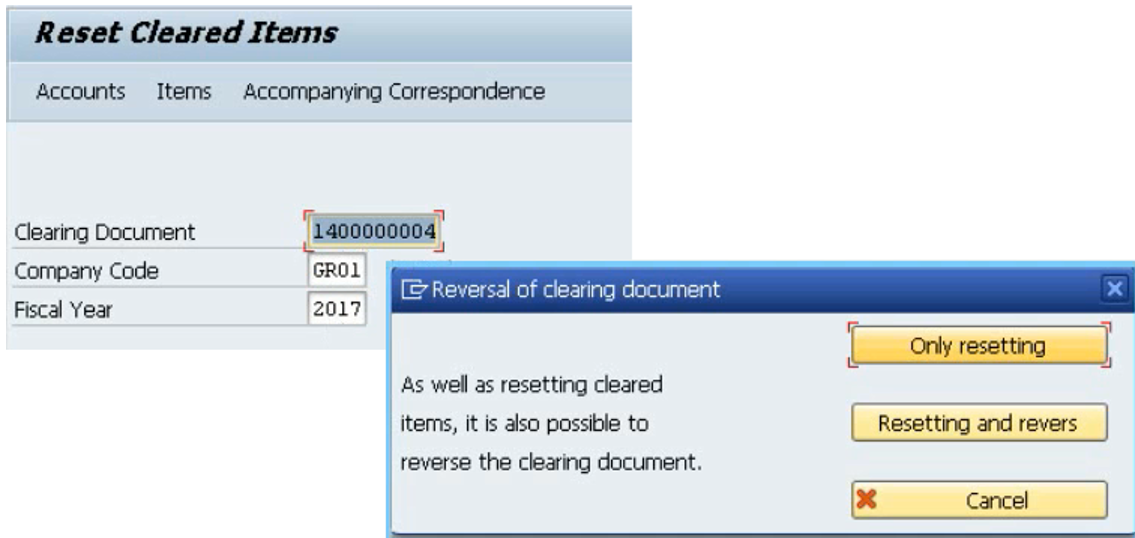 Once the clearing has been reversed you could check which are the correct items that have to be cleared.
5. Define posting keys for clearing open items #
In customizing you can define which posting keys SAP has to use depending on the clearing transaction and the item needed:
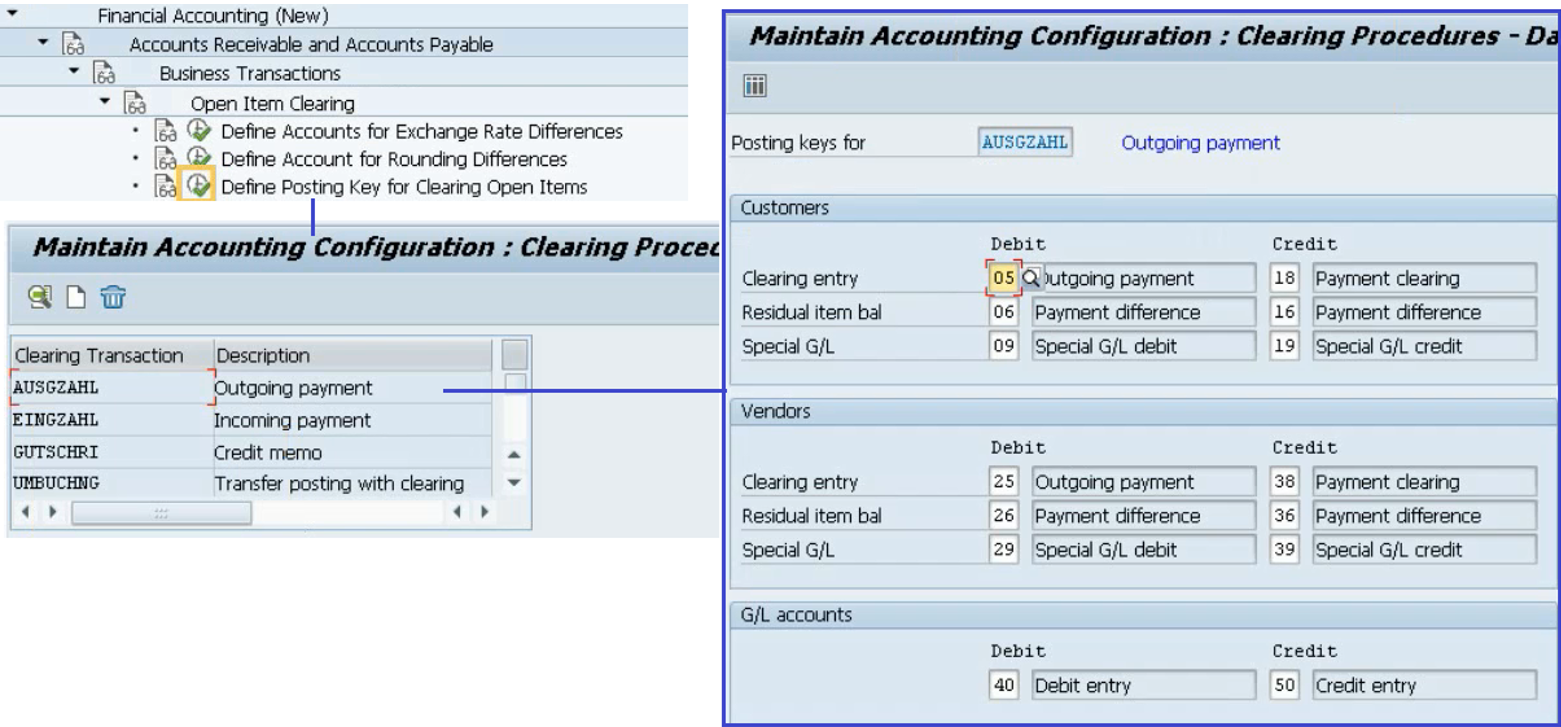
6. Display clearing document #
In order to display the clearing document from any available transaction (FBL1N – Vendor Line Item Display, FBL5N – Customer Line Item Display, FAGLL03 – G/L account line items), go to the “Environment” menu to see “Clearing information”.
7. Related transactions and apps #
- The “Repost GR-IR clearing” app.
- F-32: Clear customer items (invoices with payments or credit memos)
- APPS: Manual clearing / Clear incoming payments.

 English