Incoming supplier invoices are entered into the system. This step is the first within the “Invoice-To-Pay” business process.
1. Main things to remember #
- The “invoice date” field is the date that appears in the incoming invoice.
- The “invoicing party” field is to enter the supplier account.
- The “Gross Invoice Amount” field is the total amount as stated on the physical/PDF invoice from your supplier, and it includes the net value + taxes.
- The “Reference” field (xblnr).
This field is used to store the supplier’s own invoice number (printed on the physical invoice). Anything else in that field should be a deliberate, documented decision
When a second invoice comes in for the same vendor, the system checks the reference field (combined with company code, vendor, currency, invoice date, and amount) to detect duplicates.
- The payment terms and payment method are set with the supplier master data as default values.
2. Difference when having a purchase order or not #
2.1. PO-based supplier invoices #
A purchase order can be for physical goods (stock or consumables), but it can also be for services. The key distinction in SAP is the item category on the PO line:
- Standard item (blank item category) — typically materials/goods, and, a goods receipt (GR) is usually expected. See GR-IR matching.
- Item category D (service) — the PO is for services; instead of a GR, you get a Service Entry Sheet that records the confirmed services that have to match the invoice.
- Limit items — used for unplanned materials or services up to a value ceiling. GR is not necessarily required.
When the invoice comes from a purchase order (PO), we enter the PO and the G/L accounts are gathered from each related PO item line.
2.2. Non-PO supplier invoices #
These are often called FI invoices or direct invoices, posted via MIRO or the Fiori Manage Supplier Invoices app without a PO reference. They are usually for services, though not always. Common scenarios:
- Utility bills, rent, insurance premiums (services/expenses)
- One-off purchases where procurement didn’t raise a PO (small-value items)
- Intercompany charges
- Freight or customs invoices that don’t tie neatly to a PO item
There’s no goods receipt or service entry sheet involved, and the accountant simply posts the invoice directly to the G/L account items, with the account, amount and sign (debit/credit), tax code and CO object such as a “Cost Center”.
3. Navigate to the Journal entry #
Use te top-right link “Journal Entries” to navigate to the “Manage Journal Entries” app and see the accounting view of the invoice
4. See Open and Cleared Items from suppliers #
Use the “Manage Supplier Line Items” app to see the open items. You can filter by supplier, company code, posting date, status (open or cleared), or additional fields of your choosing.
Line items listed can be edited, if still open, to change certain fields, such as payment data (method, block, bank account), dunning data, and additional data (assignment, item text).
You can also block or unblock line items, or create a single outgoing payment for cretain items.
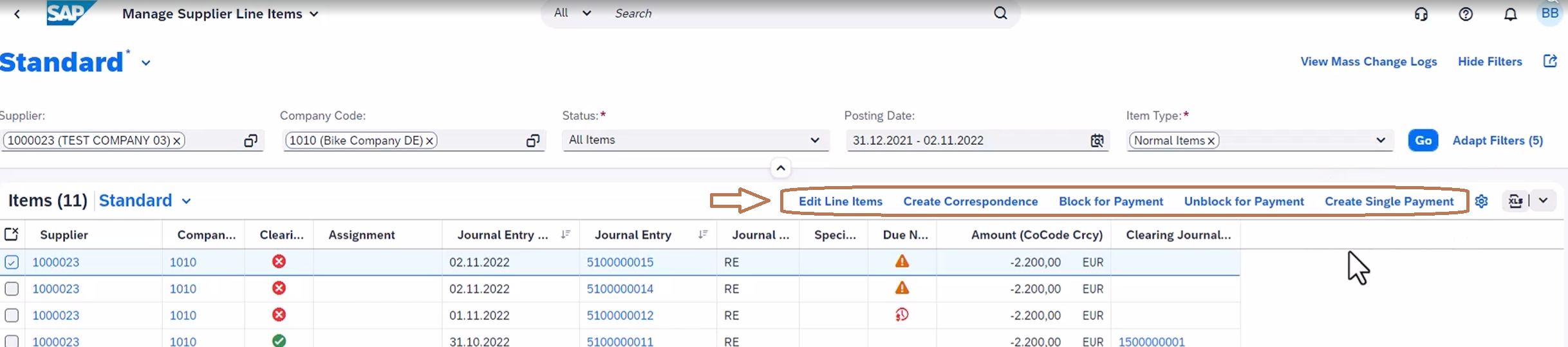
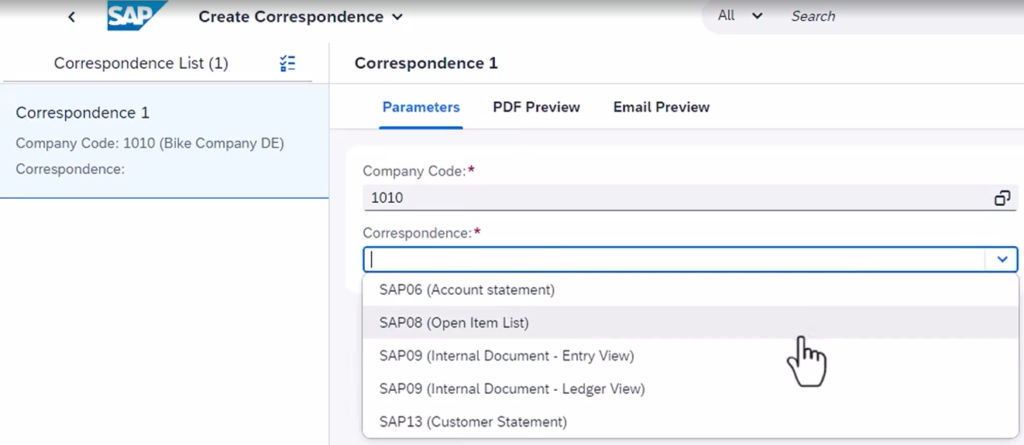
Correspondence can be created, such as an “Open Item List” for a supplier.
5. Related transactions and apps #
“Create Supplier Invoice” app.
“Manage Supplier Line Items” app.
“Manage Journal Entry” app.

 English