The creation of a customer invoice is part of the Order-To-Cash business process.
1. How to create customer invoces #
Customer invoices may be created in different ways:
- Invoice entry with sales order (with “Create Billing Documents” app)
- Invoice entry without sales order (with “Create Outgoing Invoice” app)
- Via billing plan
- Mass upload of invoices
There are automated workflows to facilitate the exchange of information between departments (logistics, wharehouse management, accounting).
2. Customer Invoice Lifecycle #
Main stages of the lifecycle:
- Customer invoice creation.
- Post accounts receivable.
- Invoice corrections (if necessary).
- Payment, and handle payment differences if necessary.
- Clear customer invoice.
- Issue correspondence.
3. Main fields #
At header level
- Journal entry date: This is the date on the invoice.
- Posting date: When it’s recorded.
- Journal entry type: invoice, credit memo.
- Company code.
- Currency.
At item level – General
- Account.
- Amount (credited or debited according to it’s posting key).
- Item text.
At item level – Payment
- Payment method, such as direct debit or bank transfer.
- Payment terms.
At item level – Taxes
- Tax Code.
- Tax G/L account.
- Tax base amount.
- Debit/Credit tax amount.
- Tax rate.
4. Related transactions and apps #
4.1. Create Outgoing Invoices app #
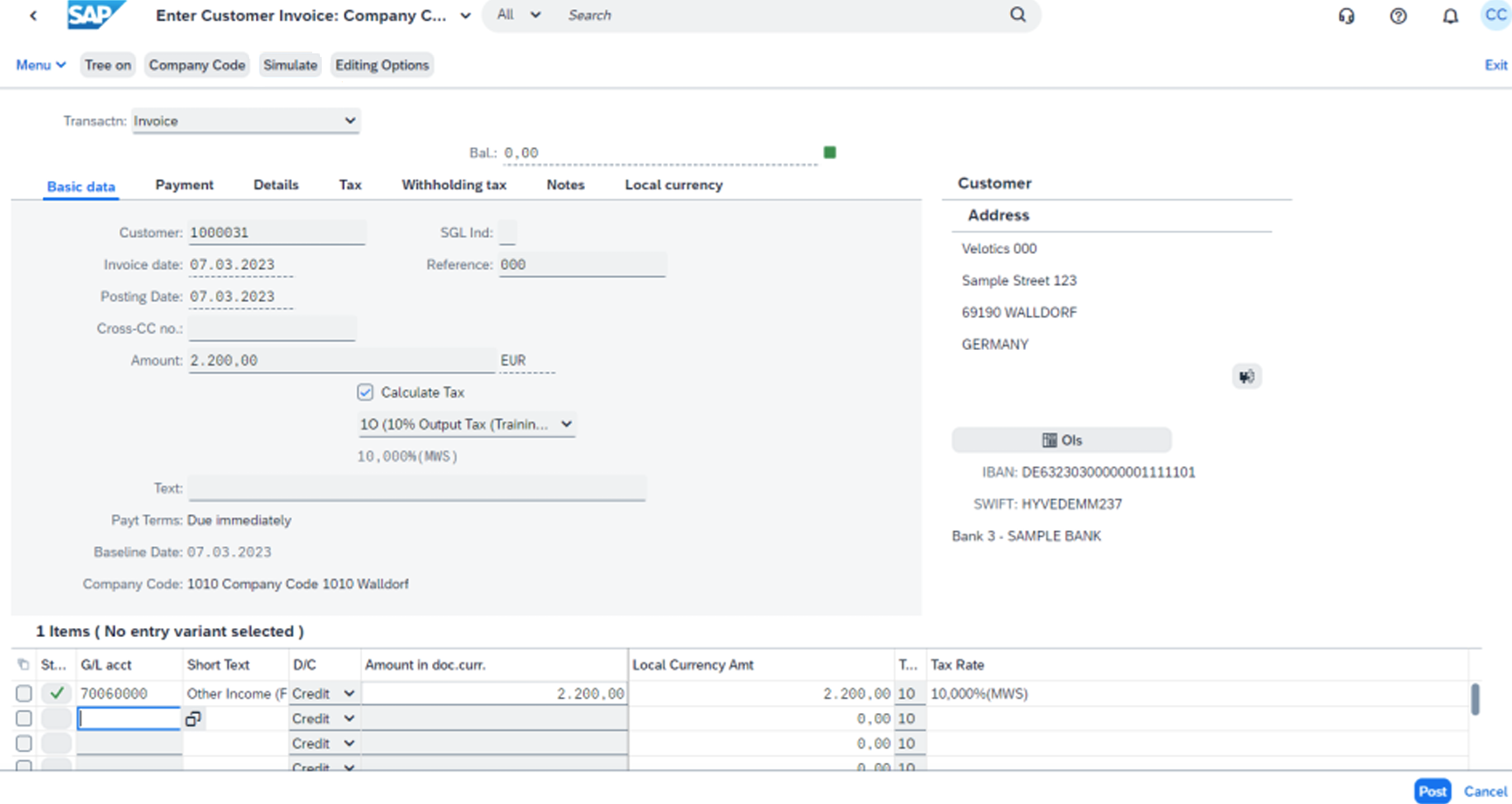
Use this app to create customer invoices without a sales order.
Enter the basic data: Customer, invoice date, posting date, total amount, tax code.
Check the payment tab: This information comes from the customer master data as a default value, such as payment terms or payment method.
Enter item data: Revenue G/L account, amount, and additionally CO objects such as profit center if the company use them.
4.2. Create Billing Documents #
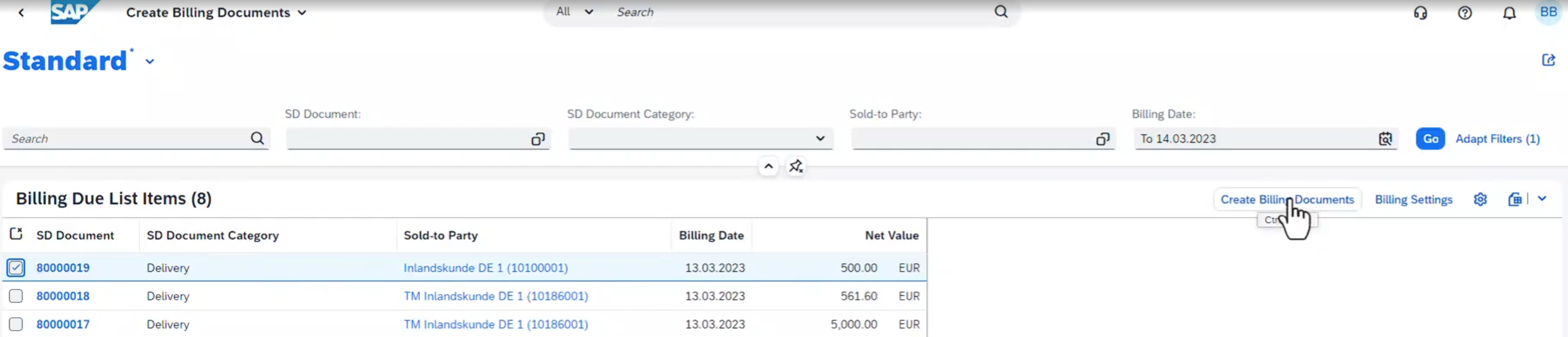
Use this app to create a billing document (invoice) from a sales document. Select it and clic on “Create Billing Documents”:
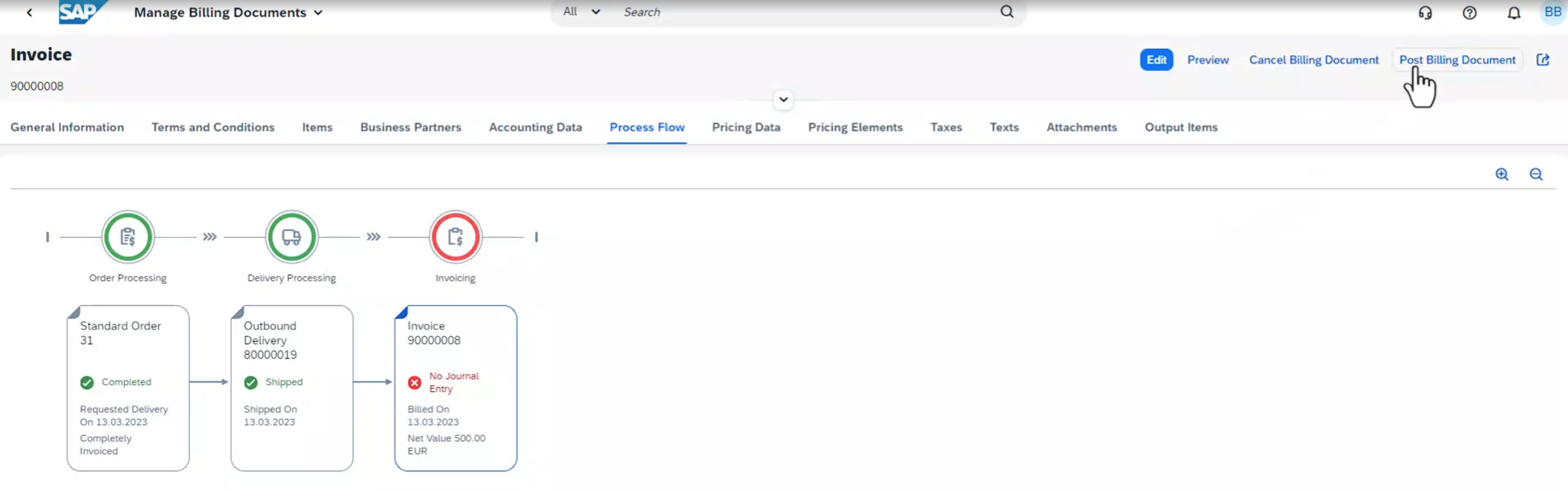
This presents a generated invoice not saved yet. Once you save the invoice you have to clic on “Post Billing Document” to create the journal entry:
4.3. Other apps #
“Upload Customer Open Items” app.
“Manage Journal Entry” app.

 English