The company code is the most important organizational unit of FI. It’s a legal and independent accounting unit. It’s tipically used to represent an independent company within the organization. It can also be used to represent a dependent branch abroad, which has reporting requirements for the country where it operates.
Relevant accounting transactions are saved day by day into accounting documents related to the company code. Each document consist of money movements between different G/L accounts within the company code.
When the time comes to create some legally required accounting reports, the company code is used to generate them. The usual reports are the balance-sheet, and the profit-and-loss statement.
1. Steps to create a company code. #
Forr the creation of a company code you have to consider the following main steps.
1.1. Define the company. #
Before creating the company code, a global company ID should be defined to represent that company across the group. This ID is used for consolidation purposes and the usual approach is having a company ID defined per company code. However, the company could have a landscape of company branches in other countries, and all of them could be defined as company codes assigned to the same global company ID.
Apart from the company IDs representing company codes within the system, you’ll define other company IDs which are known within the organization but not defined in the system as company codes (because their accounting is maintained in other systems).
Check the details for the creation of the company in following video:
1.2. Define the company code. #
Instead of creating a new company code from scratch, it’s recommended to copy an existing one, as similar as possible to the new one. It’s better to choose a company with the same chart of accounts. Doing so, you can save a lot of time since the company code segment of all the G/L accounts will be copied from the reference company code.
Once the company has been copied, you have to edit its main properties. This is where you set the company’s name, country, currency, language and address.
Check all the details in following video:
You can also copy the company code from menu (of the spro task):
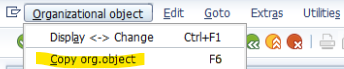
If SAP asks to transport range numbers, the answer is “Yes”.
Once it has been created you can assign it to the company ID created for consolidation in the previous step:
1.3. Define the global attributes. #
Then you shoul check the global settings of the company code and make some changes if needed. In the global attributes you have amont others:
- The assigned company.
We have already assigned the company in a previous specific step, but you could have done it using the global attributes.
- The company operational chart of accounts.
The smallest organizational unit for which a set of accounts can be defined is the company code.
- Optionally, the country chart of accounts.
- The field status variant.
Only field status groups assigned to this field status variant can be used when editing a G/L account (company code segment).
- The fiscal year variant.
- The posting period variant.
- The VAT number.
Check the following video:
1.4. Controlling area assignment. #
You have to decide which controlling area will be used in the company code. If the organization follows the approach of using one controlling area per company code, then you’ll have to create a new controlling area and assign the company code.
The other approach is using a global controlling area for many company codes. If that’s the case then you’ll only need to assign the company code to the existing global controlling area.
Check the details in the following video:
1.3. Other steps. #
There are other steps you have to do before posting documents in the company code:
- In case you haven’t copied all the G/L accounts within the chart when copying the company code, you will need to create the G/L accounts required for the documents that are going to be posted.
- Define the business partner customer master data at company code level and check that the corresponding G/L reconciliation accounts needed for them are also defined for the company code.
- Do the same for the business partner vendors or providers.
- Define the document types that will be used when posting documents and their related number ranges in the company code. These number ranges can be copied from other company.
- Define the company code settings for the payment program configuration.
- Define which validations/substitutions should apply to the company code.
- Most likely the company will want to manage and valuate assets using SAP. For setting up FI asset accounting you have additional steps.
2. Other organizational elements #
Once you have followed the steps to set up the company code and start posting documents, you should consider wether to set up additional organization structures such as cost centers, profit centers and segments.
If you need help to figure out an organization structure or you just need a first draft to start working on with the client, I suggest you have a look at this document, where some ideas are given for better understanding of what things should be taken into consideration.
3. Related objects #
The following topics have been mentioned in this topic and you should consider going over them:
- Controlling area.
- Chart of accounts.
- G/L account.
- Accounting documents.
- Balance sheet.
- Profit and loss statement.
- Fiscal year variant.
- Posting period variant.
- Cost center.
- Profit center.
- Segment.
4. Related transactions and apps #
Some settings are only accesible via SPRO while others can be accessed directly by their transaction. These are some related transactions of the objects discussed:
| Transaction | Description |
|---|---|
| EC01 | Copy organizational object - company code / controlling area |
| V_T001 | Edit company code |
| OX06 | Maintain controlling area |
| OX19 | Assign company code to controlling area |
| OB13 | Edit chart of account list |
| FSS0 | Edit and copy G/L accounts (company code segment) |
| OBY2 | Copy all G/L accounts from a company |
| S_ALR_87012284 | Financial Statement Report (RFBILA00 program). |
| OB29 | Maintain/Create fiscal year variants |
| OB52 | Define the posting periods. |
| KS01/02/03 | Create/modify/display cost center |
| KE51/52/53 | Create/modify/display profit center |

 English