1. Accountant tasks #
Receivables Management Accountant Tasks are mainly these:
- Payments Collection and monitoring.
When a certain material or other stock is sold, the company issues an invoice to the customer, which is posted to the relevant accounts. The accountant has to check the invoice accuracy and collect the related payments.
- Posting Correction.
If an invoice has incorrect information, it has to be corrected.
- Invoice Reporting.
The accountant genertes various reports regarding customer invoices, such as the total amount and type of open receivables.
- Dunning and Correspondence.
The company can send Dunning correspondence communications as a reminder for payment, as well as other customer correspondence such as an account balance statement.
- Down Payments.
If a down payment before shipping is requested, the accountant will check that this payment is processed.
- Periodic Activities.
Financial closing requires certain periodic activities, such as sending out account balance confirmations to the customers, performing foreign currency valuations, and regrouping receivable items within the balance sheet.
2. Functions #
Receivables management functions can be divided in:
- Account Managment.
Create and maintain customer master data.
- Invoice Managment.
Check and monitor all outgoing invoices and make corrections.
- Incoming Payments.
The aim is processing incoming payments from customerss.
Open items (not payed yet) are monitored. The clearing of receivables can be done automatically with the EBS or with the payment program’s direct debit payment method.
- Correspondence.
The aim is the communication with the customer, such as sending the balance confirmation, account statements, payment advices, and payment confirmations.
- Customer Analytics.
The aim is getting key information on outstanding payables such as “Days sales outstanding”, “overdue receivables”, or “aging analysis”.
3. Related apps / transactions #
3.1. Accounts Receivable Overview app #
It’s a central app that shows important receivables management KPIs. It’s an entry point to navigate to analytical apps with more detailed information, such as:
- Days Sales Outstanding: Represents the average of days for customers to pay their invoices.
- Receivable Aging: Representation of the outstanding invoice’s lifetime.
- Top ten debtors.
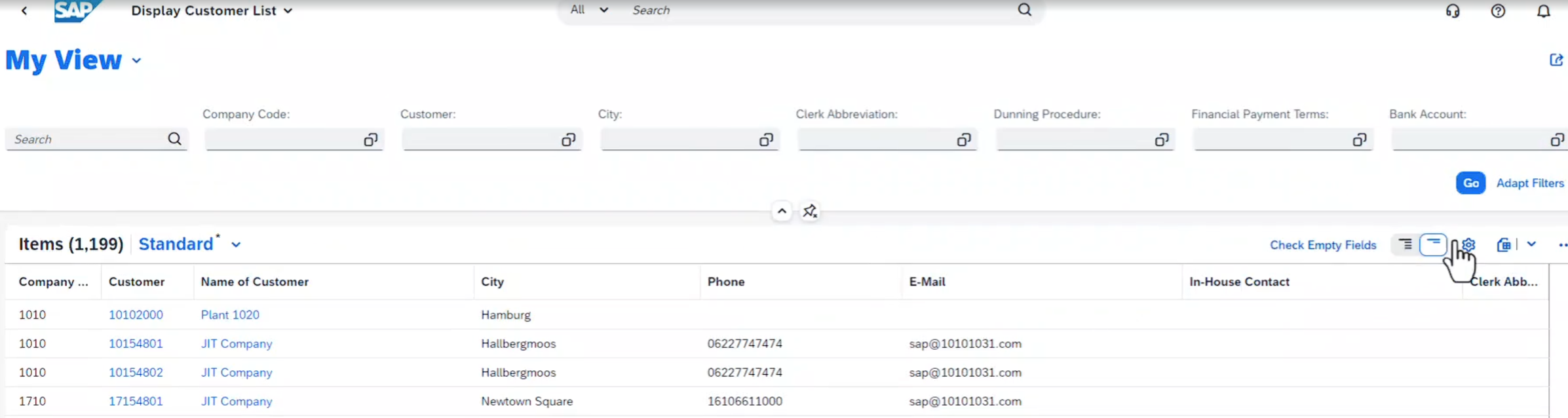
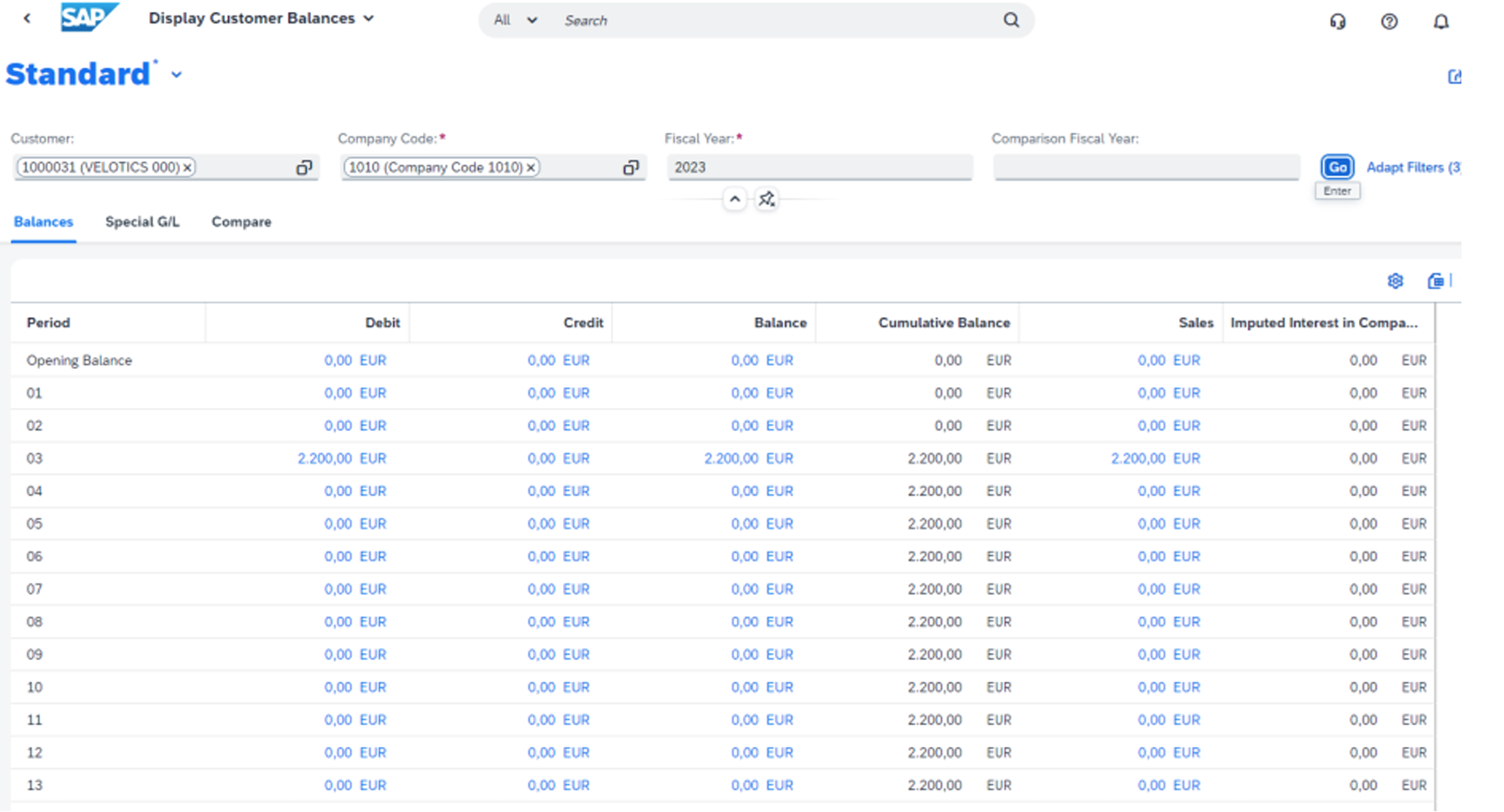
3.3. Display Customer Balances app #
You can view the balances for any customer in a company code and fiscal year, and compare it with other years. The information is presented with a row per period. The balance is the sum of postings of each period. You can navigate to the “Manage Customer Line Items” to see the individual postings included in that row/period.
3.4. Manage Customer Line Items app #
Use this app to view the open or cleared Items of the customers:
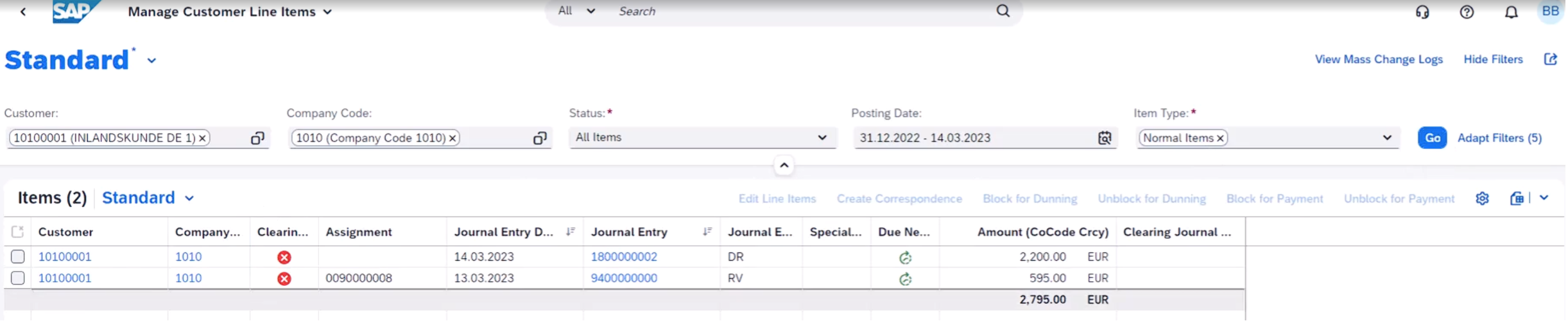
You can select an item to edit, block for payment, block for dunning and create correspondence (such as open item list, customer statement).
3.5. Post Incoming Payments app #
Use this app to enter Incoming Payments. See further details of incoming payments.
3.6. Create Outgoing Invoices app #
Use this app to create customer invoices without a sales order.
3.7. Create Billing Documents #
Use this app to create customer invoices from a sales order.
3.8. Clear Incoming Payments app #
The “Clear Incoming Payments” app exists for the cases where that automatic clearing is not able to match the customer items to clear. This could happen with the EBS postings. For instance, the customer has paid the right amount, but there’s a mistake in the payment reference, or the customer took an unauthorised cash discount.
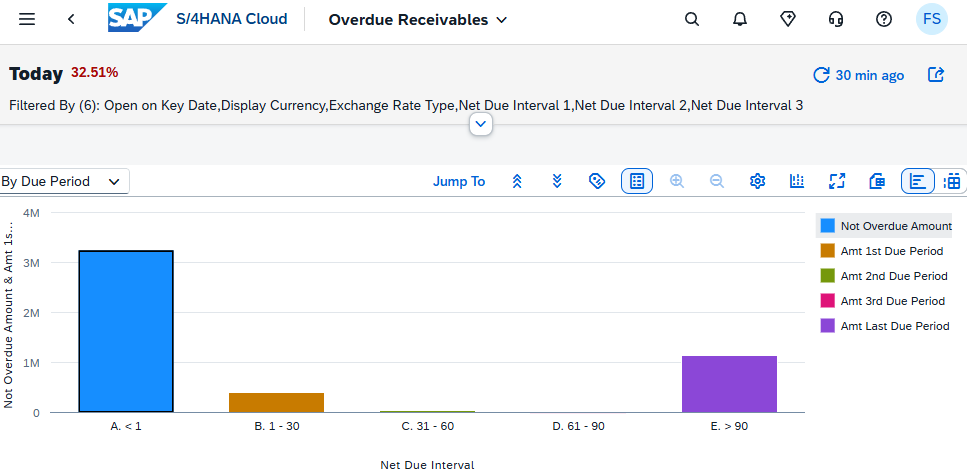
3.9. Overdue Receivables app #
Use this app to see graphically the customer open items, according to its due period:
3.10. Create Correspondence #
A customer might request account statements from you, to compare information in their own system. This will ensure data consistency.
Your company can request a balance confirmation from a customer, to validate that the customer records match the company’s records.
A Dunning Letter can also be sent to a customer to remind the customer that a payment is due.
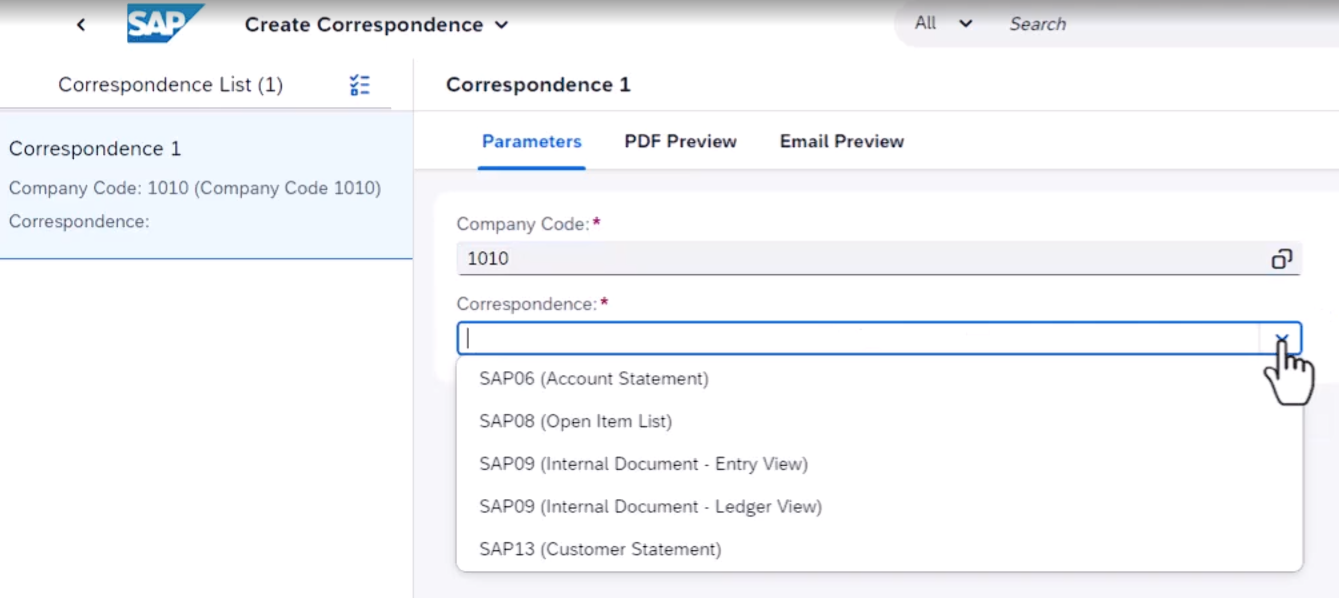
You can use the “Create Correspondence” app to choose the correspondence to send, check a PDF or email preview before sending it:
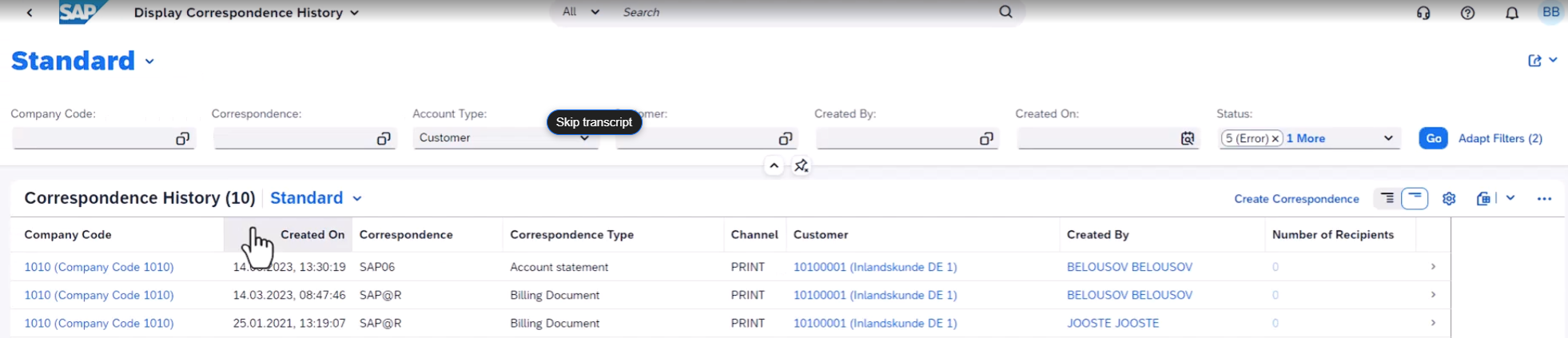
To see previous correspondence sent to customers or suppliers, use the “Display Correspondence History” app:
3.11. Manage Business Partner app – Customer Fact Sheet #
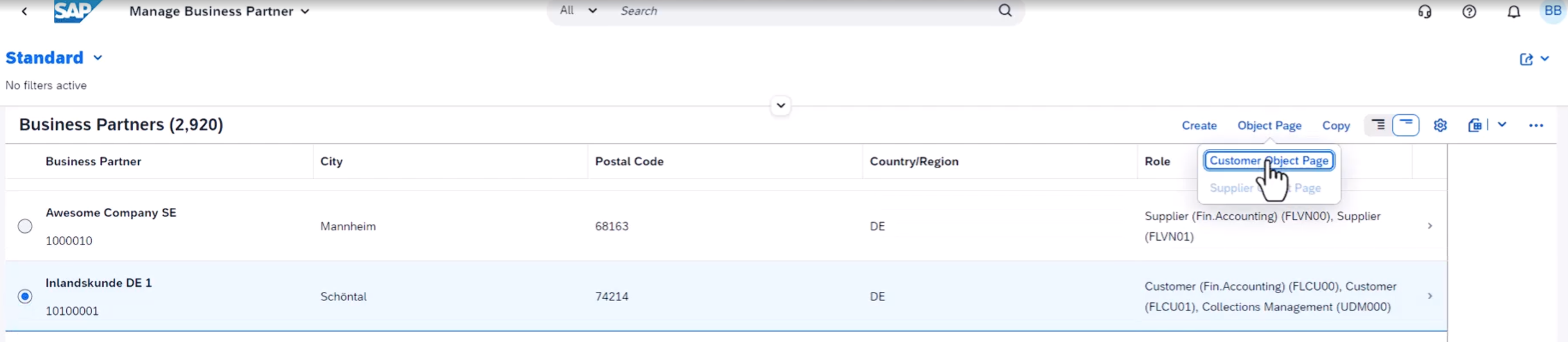
Within the manage Business Partner app you select a customer and go to “Customer Object Page”…
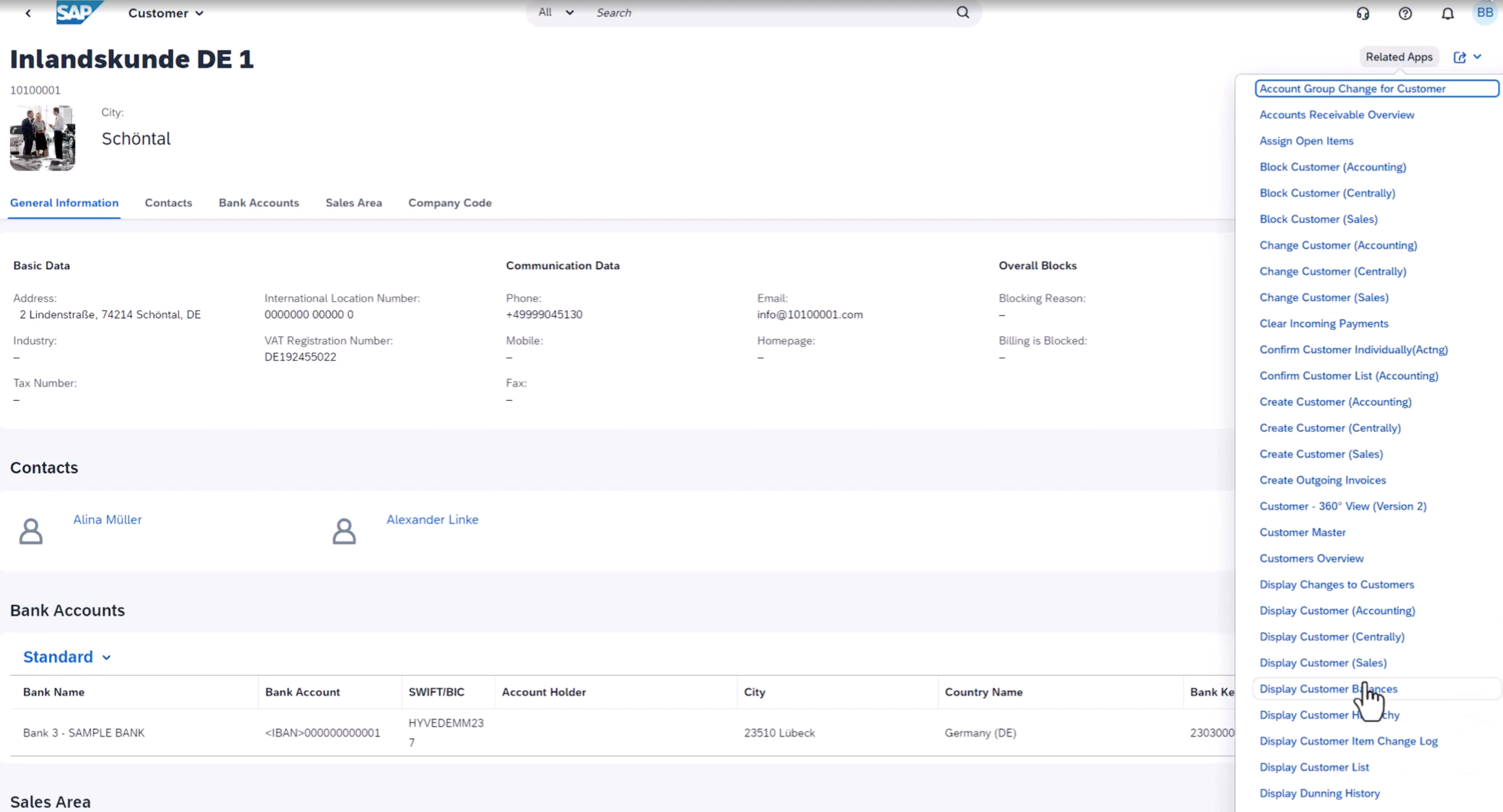
…and then you see the fact sheet where you can navigate to many customer apps:
3.12. Display Process Flow #
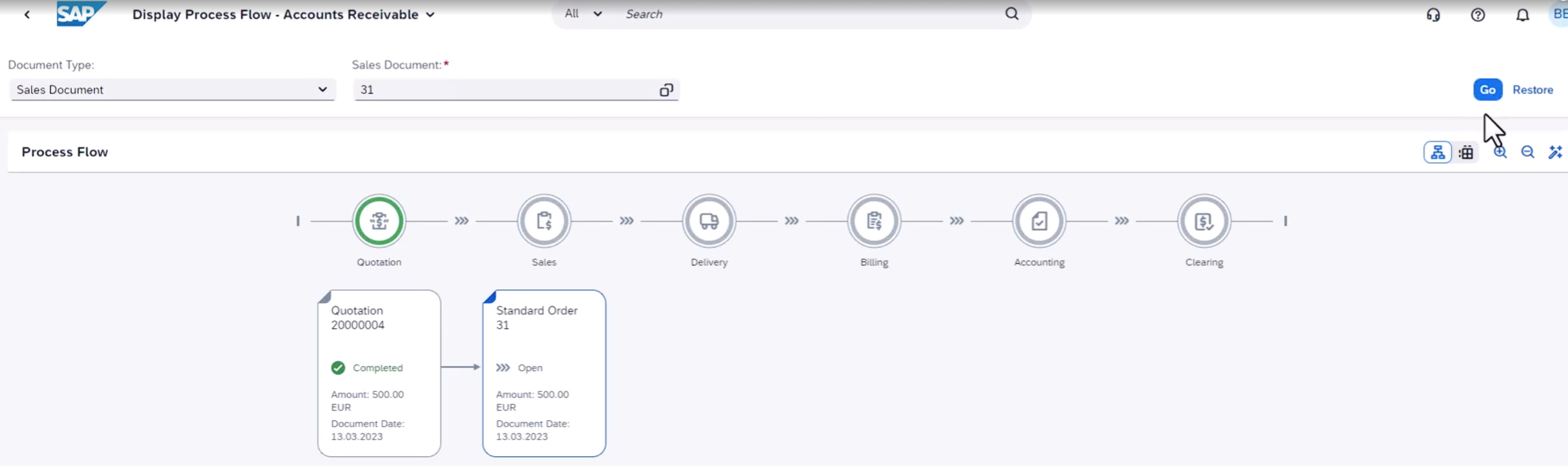
There are 2 similar apps. In the Display Process Flow for Accounts Receivable you enter a document and you can see the flow for different related processes, and the remaining ones:
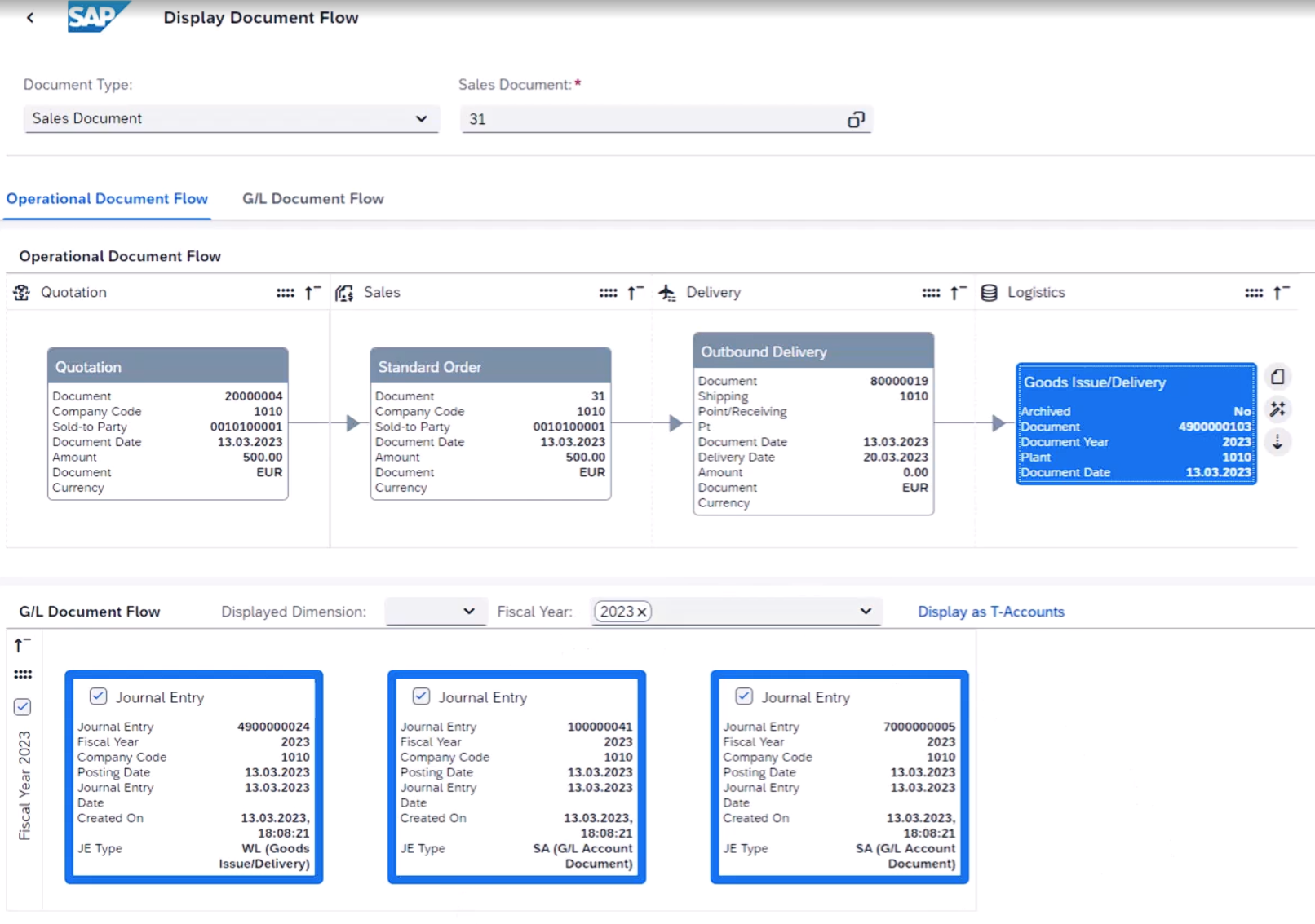
In the diplay document flow you find one section for the sales documents flow, and other for the G/L document flow. Once the delivery document is posted, G/L documents are created:

 English